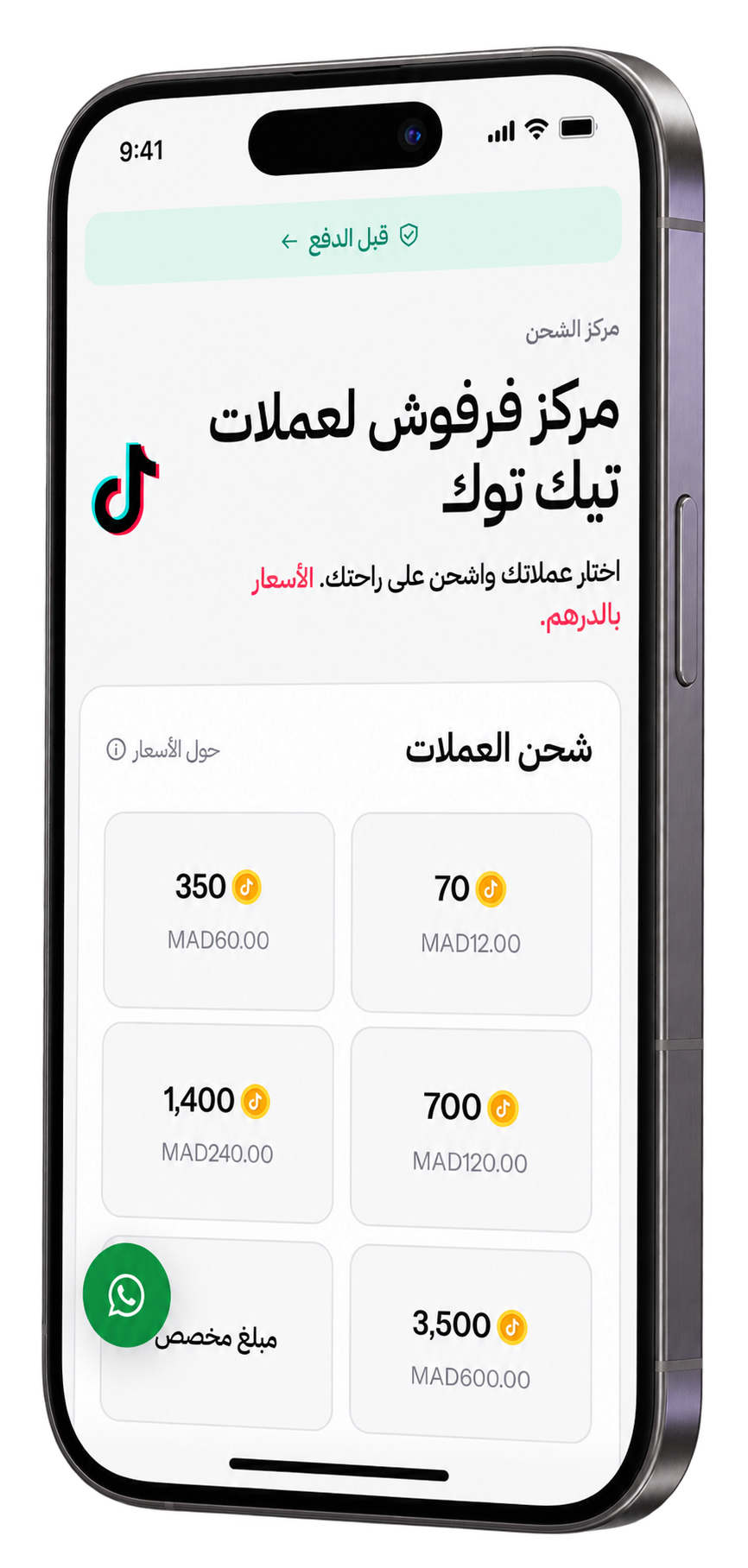
Video walkthrough and steps to recharge TikTok Coins with Orange in Morocco without a bank account on farfosh: from 200 MAD, regular recharge without an asterisk (*).
This blog brings together practical explanations for using Farfosh, beginning with the illustrated TikTok QR connection guide. Use the article when you want to see where to start, which screen to check and what to do after scanning. It is written as a sequence you can follow at your own pace. You do not need to complete every action while reading; first identify the step that matches what is on your screen.
Before following a connection tutorial, check whether you are using the website or the Android app. A QR code displayed on a second screen and quick login inside the app are different starting points. Do not try to scan a code on the same phone by following instructions intended for a computer screen. Read the explanation for the device and route you actually chose, then continue from there.
Prepare the account and screens before scanning
Open the TikTok account you intend to connect and check that it is the correct one, especially if you switch between profiles. For the website QR route, keep the Farfosh connection page visible on another screen while using TikTok on your phone. Make sure the whole code is readable and that reflections or a dim display are not obscuring it. Follow the article’s illustrations for the scanner rather than guessing from a different app’s camera.
An expired code and an unapproved login are different situations. If the code is no longer valid, generate a new one instead of repeatedly scanning an old screenshot. If scanning succeeded but the website is waiting, check whether TikTok still needs your confirmation. Reading the exact message helps you choose the next step without restarting everything or creating several connection attempts that are hard to tell apart.
Use the pictures and video as a reference
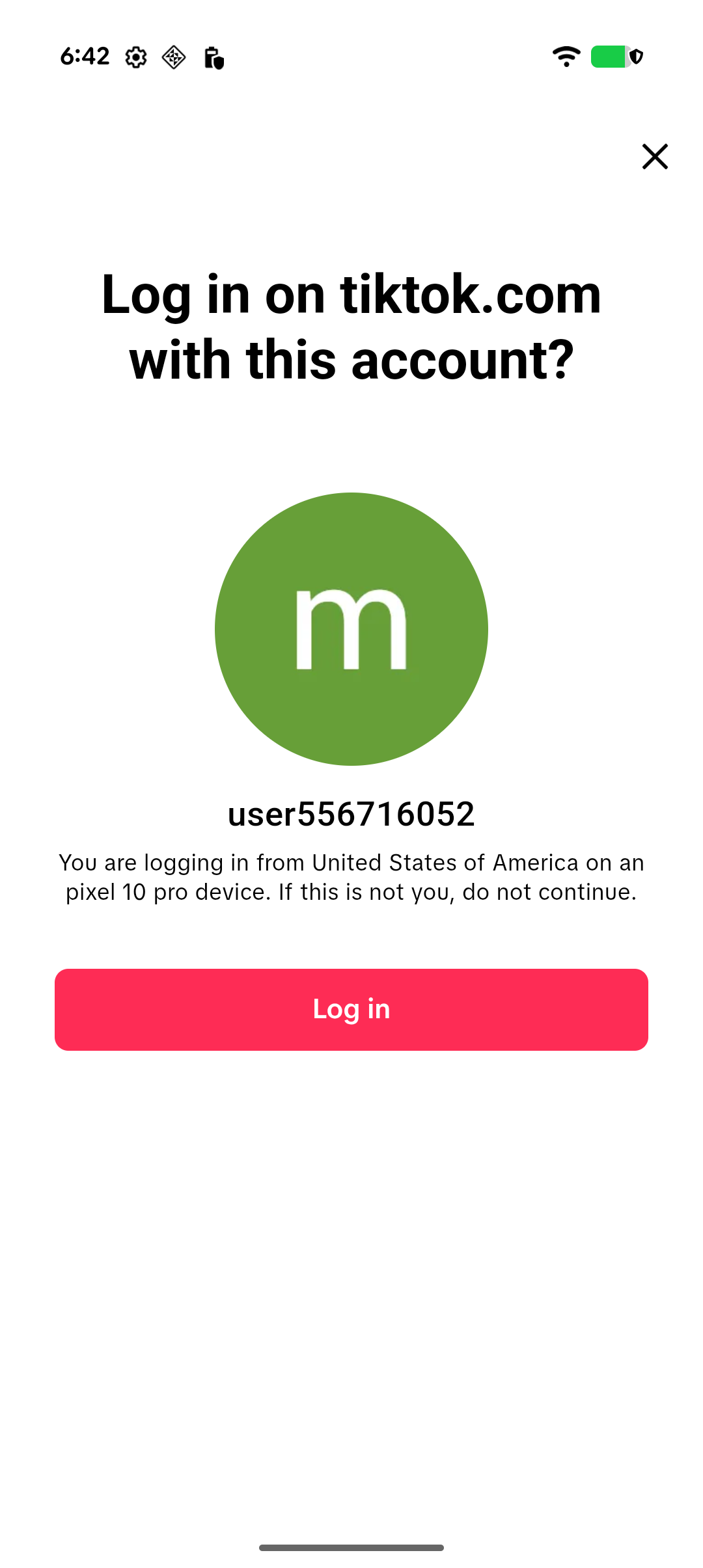
The featured article includes screen illustrations and, when available, a video demonstration. Pause at the step you want to compare with your own device. App layouts and labels can differ, so focus on the action being demonstrated and the account shown in the confirmation. A picture is there to explain the process; it is not a login request you should approve or a QR code you should reuse.
Keep the written instructions nearby when watching the demonstration. They explain what to verify before continuing and how to recognize when the connection has completed. After approval, return to the Farfosh page and check the connected profile instead of assuming that a successful scan alone finished the process. If the screen does not change, use the troubleshooting guidance for that stage.
Know where to go after reading
The Help page is the next place for a stuck connection or the wrong account appearing. The Coins shop answers questions about current packages and order totals. The comparison guide explains how to read those totals, while the privacy page describes information involved in the connection. Choose the page that matches the question rather than treating a connection tutorial as an answer to every order issue.
If you still need assistance, describe your device, the page you opened and the last step that succeeded when contacting the shop. Quote the visible error without sending a password or login code. A short sequence of events is easier to investigate than an unexplained screenshot. The blog helps you understand the flow; direct support can discuss the particular situation you encountered.
We would like to measure visits and which ads bring customers. Measurement cookies stay off until you choose, and ordering works the same whatever you pick. Privacy
We now ask separately about advertising. Your earlier choice for visit measurement is kept until you change it.