

How to scan a QR code and connect your TikTok account
Looking at a QR code and wondering where to start? This guide takes you through finding the scanner in TikTok, reading the code, and completing the Log in confirmation.
 The farfosh team
4 min read
The steps: open your code in farfosh → scan it with TikTok → check the account and confirm → return to farfosh.
Before you start
Have these ready before you begin:
- TikTok on your phone, signed in to the account you want to connect.
- An internet connection on your phone and on the device running farfosh.
- A second screen, such as a computer or another phone, to display the QR code.
Watch the video guide
Watch the connection walkthrough, then follow the written steps at your own pace. Pause or replay any part you need.
Video: scan a QR code and connect TikTok with farfosh
How to scan the QR code
Open your QR code in farfosh
Go to the home page, choose to connect your account, then select the TikTok QR scan option. Keep the code visible on your second screen and leave the page open until the connection finishes.
Open the scanner inside TikTok
On your phone, open TikTok and go to Profile. Tap the ☰ menu, choose Your QR code, then tap Scan. Names and locations can vary by app version; some versions offer the scanner under Friends, then Find friends.
Point the camera at the code
If TikTok asks for camera access, allow it to scan. Keep the entire code inside the frame, hold your phone steady, and avoid strong reflections on the screen. Use the scanner inside TikTok.
Review the login request in TikTok
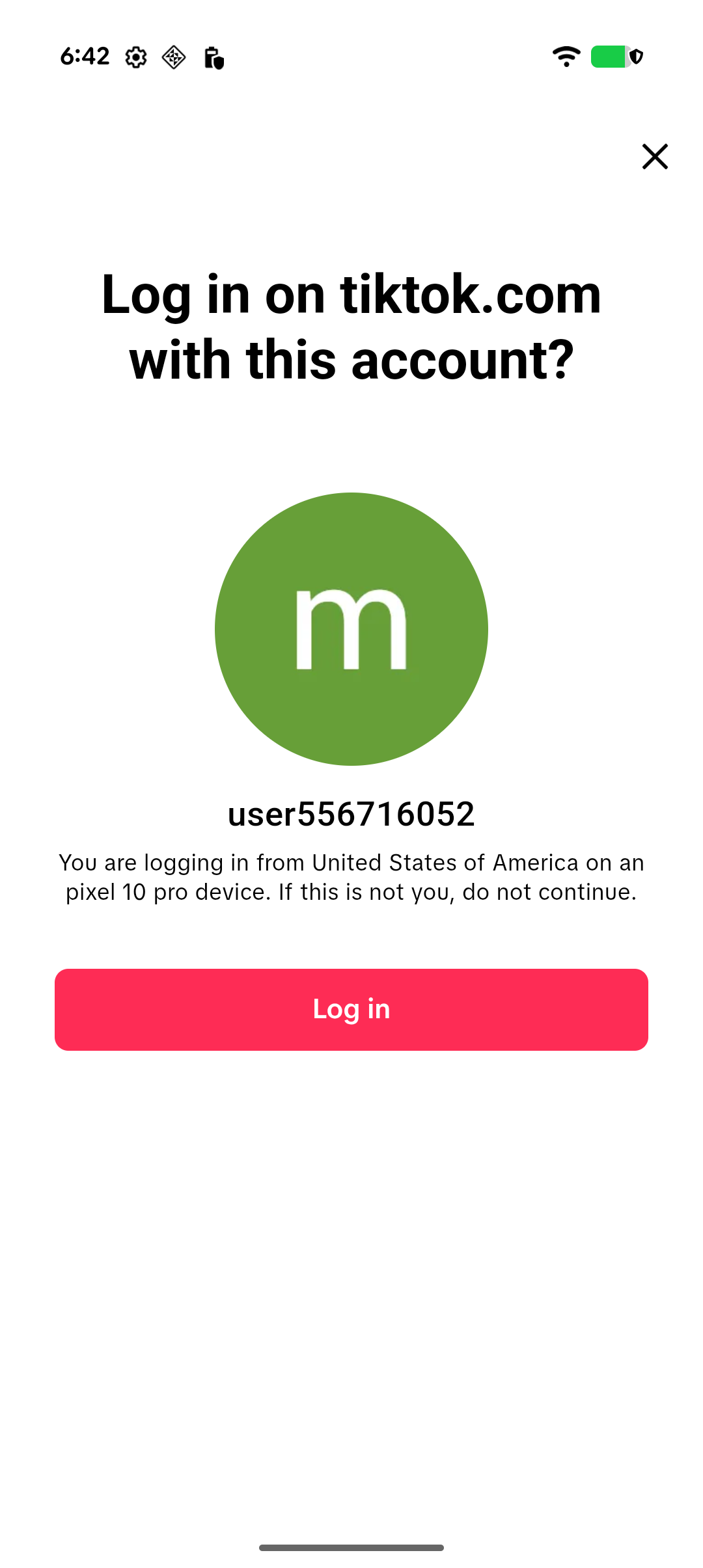
After scanning, a confirmation screen like the example below appears. Check that this is your account and the login request you just started. Tap Log in only if you recognize the request and want to continue.
Return to farfosh to finish
After confirming, return to the QR page and wait for your connected account to appear. Check the username and profile picture before choosing a package. If the page does not update, try the troubleshooting steps below.
TikTok menu names may change with updates. TikTok also documents the Profile → ☰ → Your QR code → Scan path in its help center. Find the scanner in TikTok’s help guide ↗
Check your account and confirm
This is the confirmation screen. Review the username and login details before tapping the pink button. Scanning alone does not finish the process; you must confirm inside TikTok.
If you get stuck
The QR code expired. What now?
Return to farfosh and request a new QR code using the retry button shown on the page. Scan only the newest code and confirm promptly. An old screenshot will not complete the connection.
The camera will not read the code
Check TikTok’s camera permission, increase the brightness of the screen displaying the code, and keep the full code visible. Clean the camera and move your phone slightly closer or farther away. Scan inside TikTok.
I cannot find Scan
Try Profile, then ☰, Your QR code, and Scan. Some versions place it under Friends or Find friends. If your interface differs, update TikTok from the official store and check the app’s help.
I scanned, but the account is not connected
Check whether you still need to tap Log in inside TikTok. Then return to farfosh and check your connection. If the code expired before confirmation, start with a new one. If the issue persists, tell support which step you reached.
The confirmation shows a different account
Do not confirm. Close the request, switch to the correct account in TikTok, then return to farfosh and start again with a new QR code.
Ready? Connect one step at a time.
Keep this guide nearby, open farfosh, and start with the first step.
Start recharging TikTok Coins in MAD